By default, to view submissions, you have to manually open your form and navigate to the Responses tab. Google Form Editor -> Responses Tab -> View Individual Answers
If you prefer to be automatically alerted whenever someone fills out your form, you can enable built-in email notifications or use a dedicated Google Workspace add-on like Form Notify.
How to Enable Native Google Forms Email Notifications
Google Forms includes a default setting that sends an email alert to the form owner upon every new submission. Here is how to turn it on:
- Open your form in Google Forms.
- Go to the Responses tab at the top.
- Click on the three dots icon (⋮) in the top-right corner of the Responses panel.
- Select "Get email notifications for new responses".
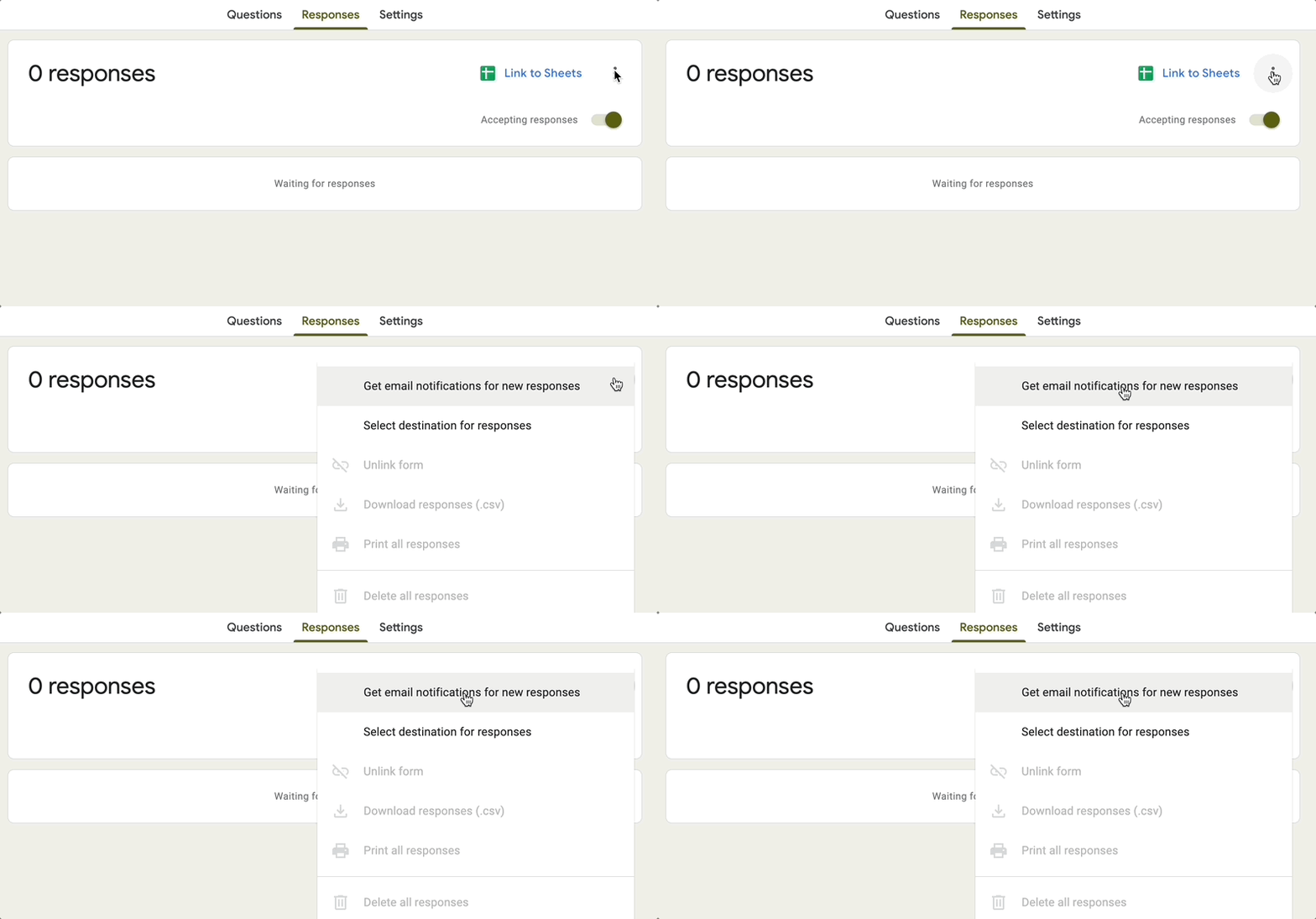
Once enabled, you will receive an automated email notification in Gmail every time someone submits your Google Form.
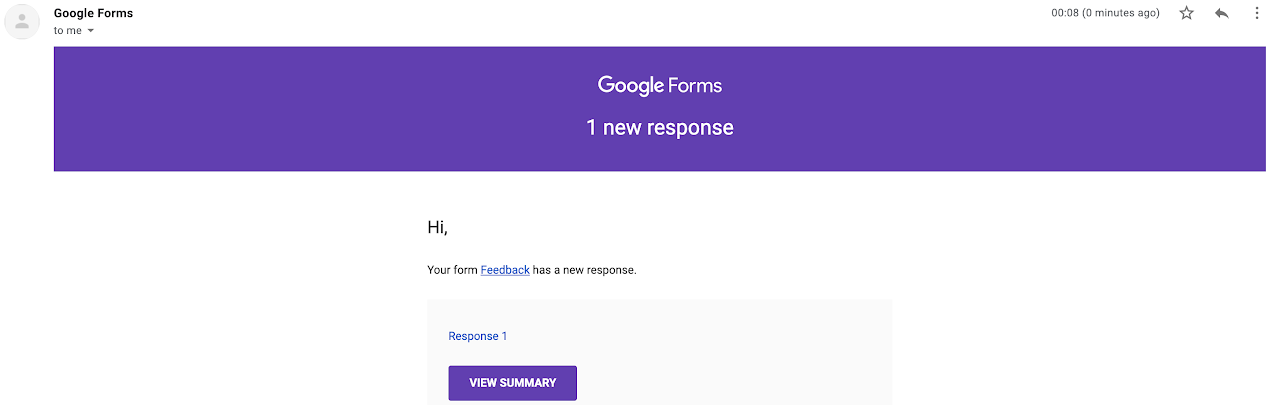
Limitations of Built-In Google Forms Notifications
While the native Google Forms email notification feature is quick to turn on, it comes with several major drawbacks:
- No response content in the email: The notification only alerts you that a submission occurred; it does not include the actual form responses or field values inside the message.
- Extra clicks required: You must click a link inside the email and navigate back to Google Forms or Google Sheets to inspect the submission.
- Single recipient limit: Notifications are sent strictly to the form owner's email address. To notify team members, you must add them as collaborators, and each person must manually log in and enable notifications themselves.
- No respondent confirmation emails: You cannot automatically send a thank-you or confirmation email back to the person who submitted the form.
- No conditional routing: You cannot send notifications to different departments or team members based on specific answer choices (e.g., routing support requests vs. sales inquiries).
How to Send Personalized Email Notifications for Google Forms (To Owners, Team Members & Respondents)
You can overcome all of these limitations by using the Form Notify - Email Notifications for Google Forms add-on.
With Form Notify, you can:
- Include full response data directly inside the email body using dynamic tags.
- Send immediate notification emails to multiple team members or dynamic email addresses.
- Automatically send confirmation emails to the form respondent.
- Apply conditional logic to trigger notification emails only when specific criteria are met.
Step 1: Install and Launch the Add-On
- Install Form Notify directly from the Google Workspace Marketplace.
- Open your Google Form.
- Click the Add-ons icon (puzzle piece) at the top of the screen.
- Select Form Notify and choose Configure / Open.
Step 2: Configure Your Email Notification Rule
- Inside the Form Notify panel, click Create Processor.
- Set Recipients: Enter the email addresses of the team members or stakeholders who should receive the alert. To notify the form respondent, select the form field that captures their email address.
- Customize Email Template: Draft your subject line and message body. Use dynamic field markers (such as
{{All Answers}}or specific form question variables) to display exact response content directly in the email. - Set Up Conditional Logic (Optional): Define rules so emails are routed to specific addresses depending on user selections (e.g., send to
sales@example.comif "Department" equals "Sales"). - Save & Enable: Save your rule. Your Google Form is now set up to trigger custom email notifications on every form submit!
Frequently Asked Questions
Why am I not getting Google Forms email notifications?
Check your Gmail Spam or Promotions folder. Ensure that the "Get email notifications for new responses" setting is checked in the Responses tab, and verify that you are logged into the Google account that owns the form.
Can Google Forms send an email notification to the respondent?
The native Google Forms feature cannot automatically send response receipts or customized thank-you emails to respondents. However, you can easily set this up using the Form Notify add-on by selecting the respondent's email field as a recipient.
How do I send Google Form submit notifications to multiple email addresses?
Native notifications only alert the form owner. To alert multiple colleagues or a group email inbox automatically, install Form Notify, enter your list of target email addresses in the notification rules, and save.
Get Started with Advanced Form Notifications
Ready to streamline your workflow and get full response details delivered directly to your inbox?
- Read our detailed Installation & Launch Guide
- Follow our step-by-step tutorial to Get Your First Notification
- Install Form Notify on Google Workspace Marketplace