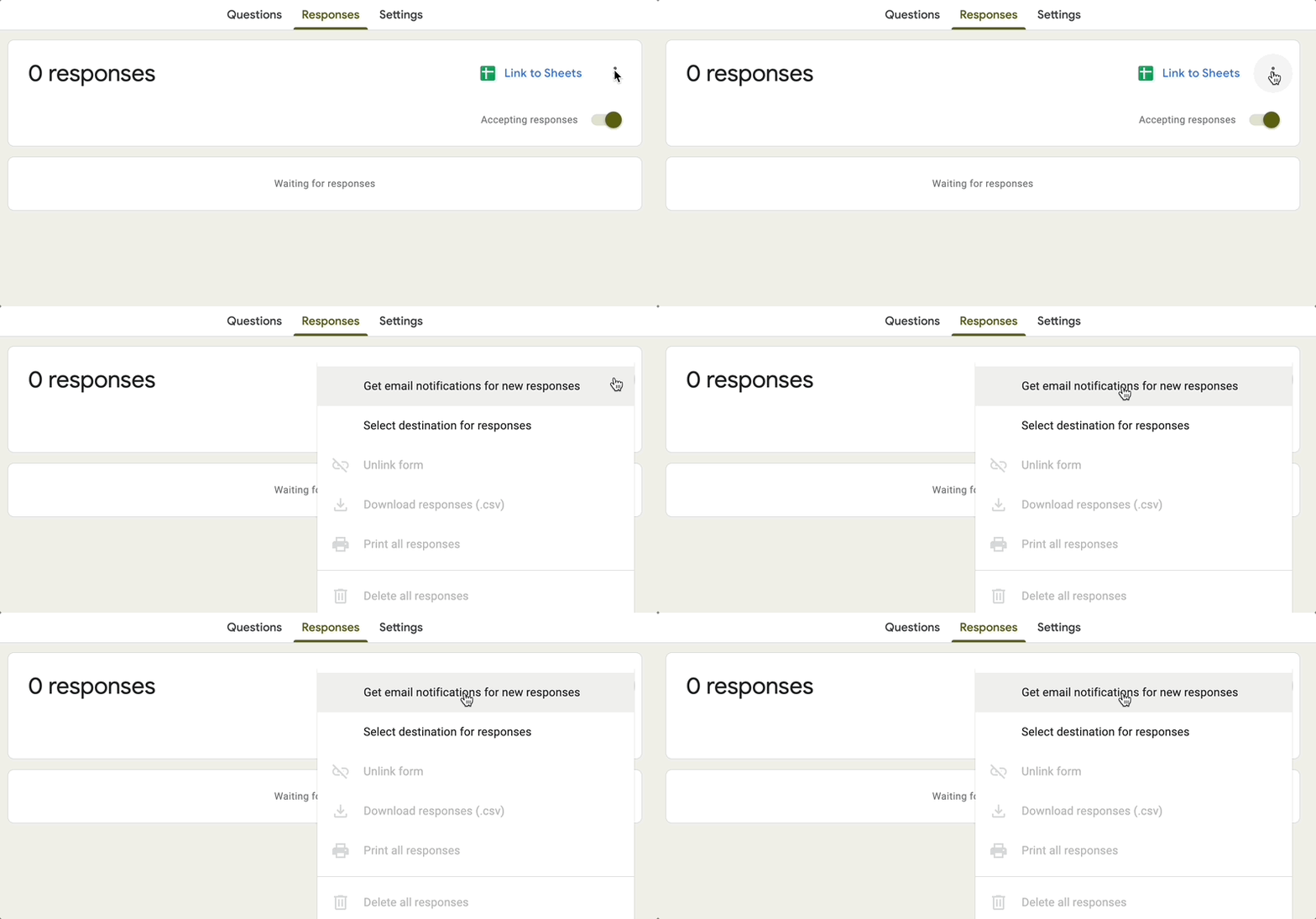
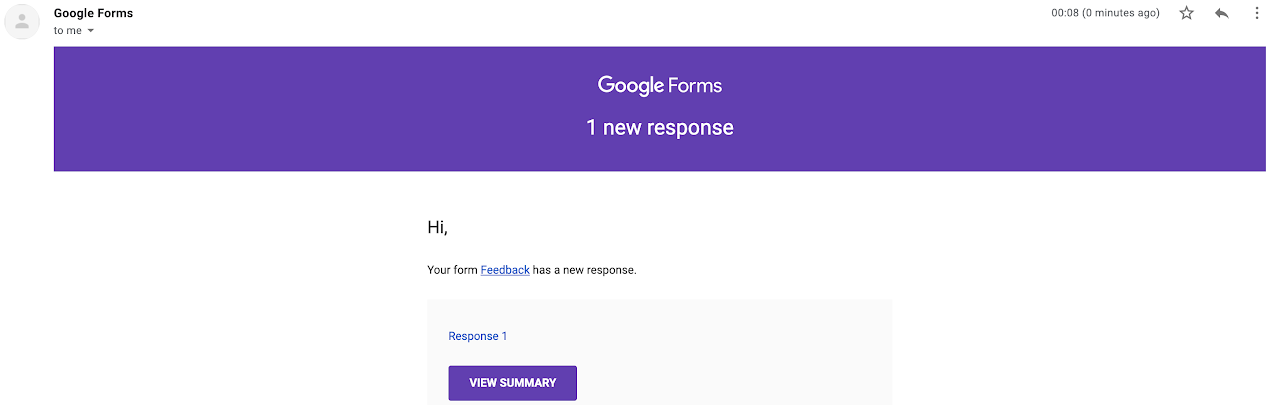
When managing multi-department forms—such as customer support tickets, sales inquiries, or feedback forms—you often need to route submission alerts to different team members depending on what choices the respondent makes.
For instance, if a user fills out a support ticket and selects Android as their mobile OS, you want the ticket sent to your Android development team. If they select iPhone, it should go directly to the iOS team.
Previously, setting up this behavior required configuring multiple individual notification rules or processors for every single choice.
With Form Notify, you can now set up Advanced Conditional Email Notifications directly within a single processor by assigning specific recipient email addresses directly to each condition set!
What is Advanced Conditional Email Routing?
Standard conditional logic allows an email notification to trigger only if a specific condition is met, sending to a single fixed recipient list.
With Form Notify's Advanced Routing, each condition set inside your rule can have its own dedicated recipient email address:
- Condition Set 1: Mobile OS equals "Android" ➔ Email sent to
android-formnotify@mailinator.com - Condition Set 2: Mobile OS equals "iPhone" ➔ Email sent to
iphone-formnotify@mailinator.com - Default Fallback: Mobile OS equals "Other" or no condition matched ➔ Email sent to the default recipient listed in "To Email Address(es)"
Respondent Selects: "Android" ➔ android-formnotify@mailinator.com Respondent Selects: "iPhone" ➔ iphone-formnotify@mailinator.com Respondent Selects: "Other" ➔ default-support@mailinator.com
This single-processor approach drastically simplifies your form notification setup, eliminates duplicate configurations, and keeps your email routing clean and easy to maintain.
How to Set Up Advanced Conditional Routing (Step-by-Step)
Follow these steps to configure dynamic recipient routing in your Google Form using Form Notify:
Step 1: Launch Form Notify
- Open your Google Form.
- Click the Add-ons icon (puzzle piece) in the top menu bar.
- Select Form Notify and click Configure / Open.
Step 2: Set Your Default Recipients
- Click Create Processor or edit an existing processor.
- In the "To Email Address(es)" field, enter your default fallback email address (e.g.,
default-support@formnotify.com). - Note: If a form submission does not match any specific condition email, Form Notify will route the email notification to this default recipient.

Step 3: Configure Recipient Emails per Condition Set
- Scroll down to the Conditions section and enable conditional logic for the processor.
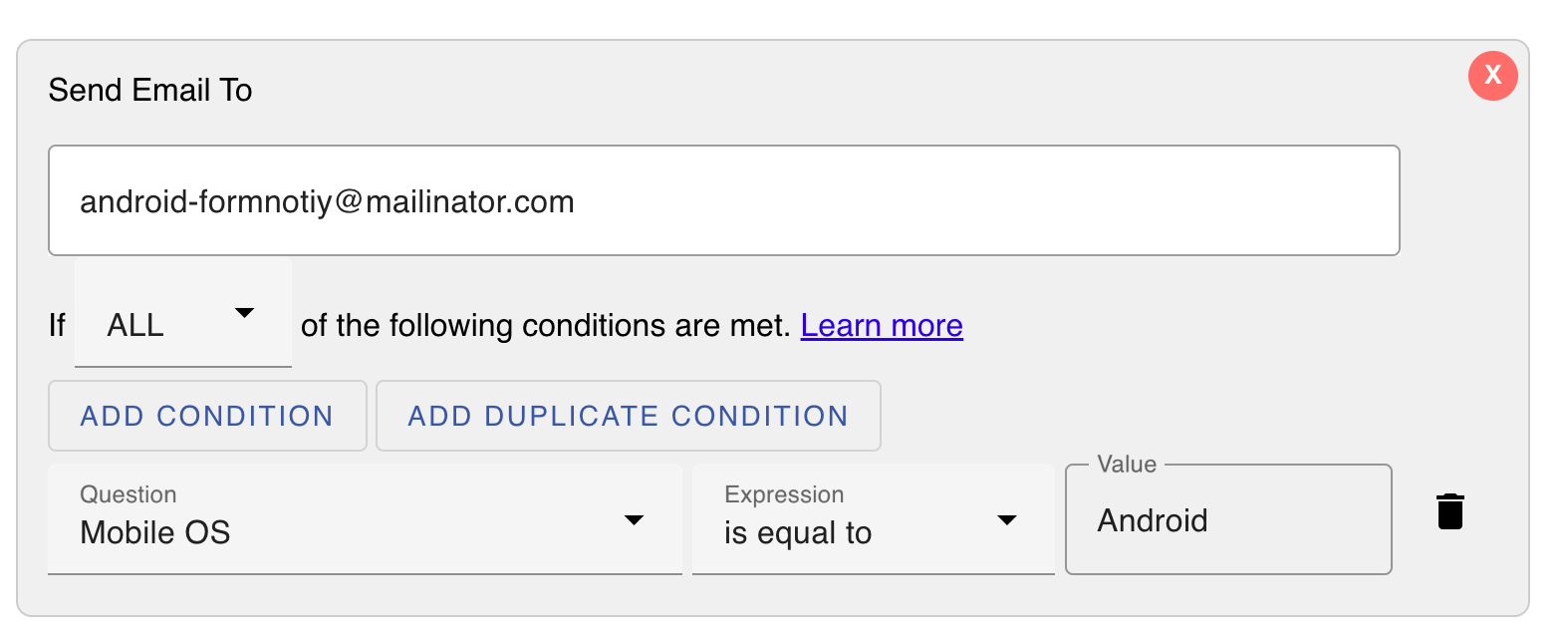
- Add your first condition rule for Android and enter its specific email recipient (
android-formnotify@mailinator.com):
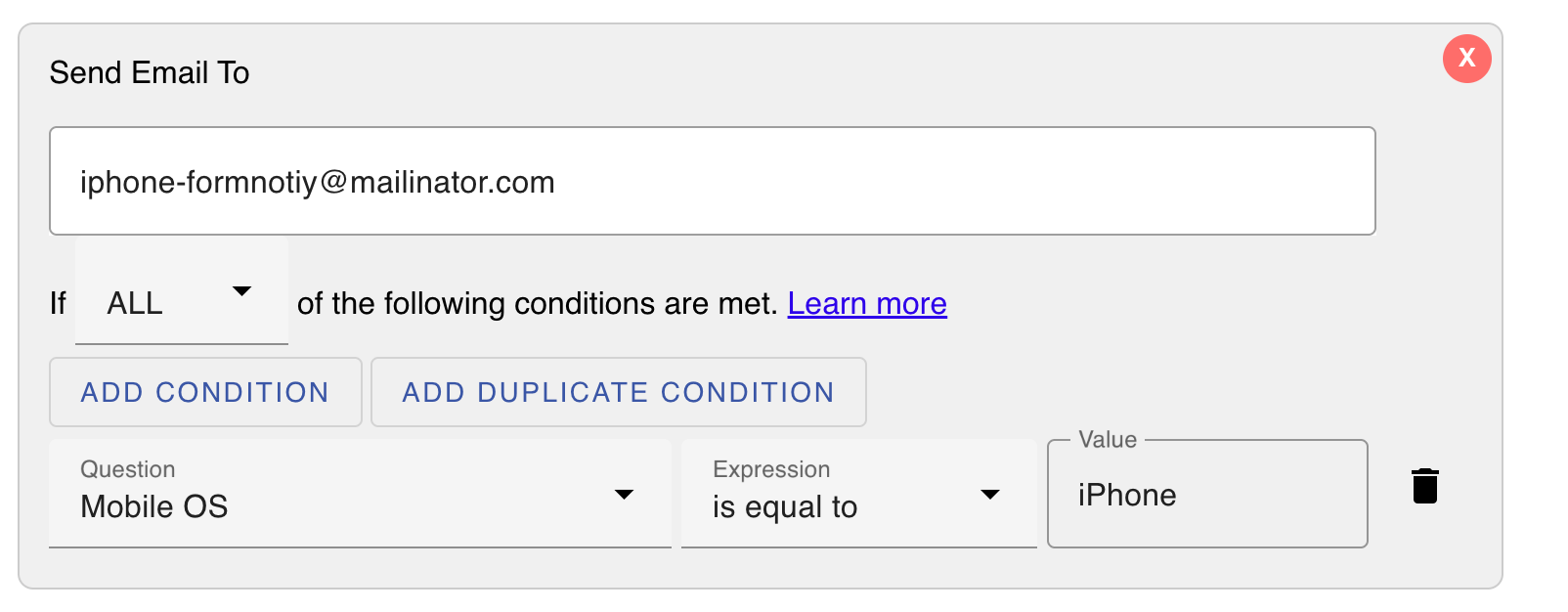
- Add your second condition rule for iPhone and set the recipient to
iphone-formnotify@mailinator.com:
- Configure the condition set for Other / Default fallback routing:
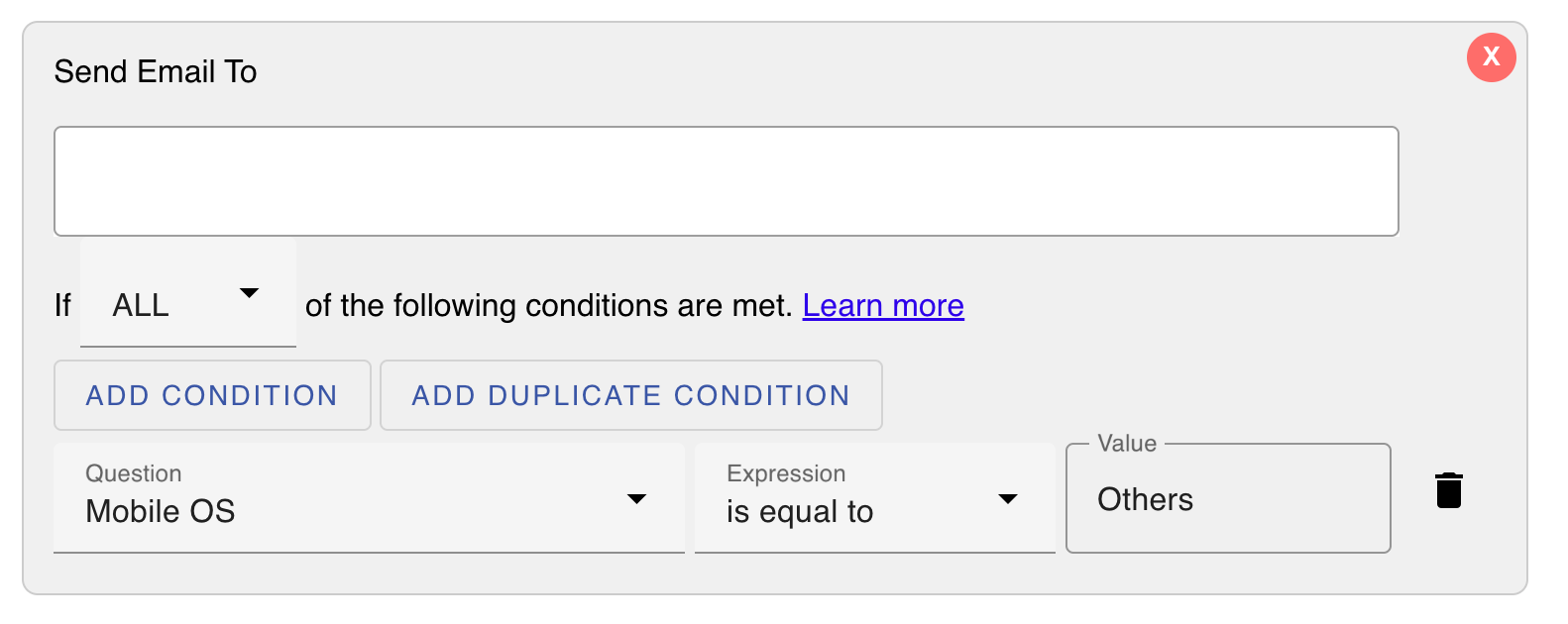
Step 4: Save and Test Your Form
- Click Save Rule.
- Submit a test response choosing "Android" to verify the email reaches
android-formnotify@mailinator.com. - Submit a test response choosing "iPhone" to verify delivery to
iphone-formnotify@mailinator.com. - Submit an option like "Other" to confirm the alert routes to your default recipient list.
Why Use Single-Processor Routing?
- Fewer Rules to Maintain: Manage all recipient routing for a single form in one clean workflow rather than maintaining 5 to 10 separate processors.
- Optional Email Overrides: The condition email field is completely optional. If left blank, the system automatically falls back to the main processor's "To Email Address(es)".
- Error Reduction: Avoid missed notifications caused by conflicting rules or duplicate email triggers.
- Flexible Logic: Combine multiple questions and conditions (AND/OR logic) while keeping recipient management centralized.
Frequently Asked Questions
What happens if a condition set does not have an email address specified?
If a condition set matches but has no specific recipient email configured, Form Notify defaults to the main email address(es) defined in the "To Email Address(es)" field of the processor.
Can I send notifications to both a condition-specific email and a global supervisor?
Yes! You can add your supervisor's email address to the main "To Email Address(es)" field or use dynamic tag routing to loop in team managers alongside department-specific email addresses.
Does this work with multi-select form fields?
Yes. You can route emails dynamically based on single-choice, multiple-choice, dropdown, or text input response values in Google Forms.
Upgrade Your Google Forms Workflow Today
Streamline how your team handles incoming form submissions without complex Google Apps Script coding.
- Read our Installation and Setup Guide
- Explore Getting Started Tutorials
- Install Form Notify on the Google Workspace Marketplace